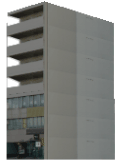
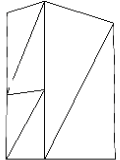


 3D model file
 (X file)
 Image file
(PNG or BMP file)
Bve trainsim > Create scenario > Tutorials > Create route
Map files can be edited with Windows Notepad, but I recommend you use the Notepad++ which have auto-completion and parameter hint features.
Learn more about install and customize Notepad++.
Bve trainsim scenery is built by combining multiple 3D model is called structure.
A structure consists of a 3D model file (such as coordinates definition) and image files.
Currently, X file is supported as 3D model file, and PNG and BMP files are supported as image file.
|
= | |
+ | |
| Strusture | 3D model file (X file) |
Image file (PNG or BMP file) |
To build the minimal scenery, here prepare 5 types of structure.
 |
 |
 |
 |
 |
| Left rail | Right rail | Ballast | Ground | Background |
Structures may also be created by yourself, but here download existing data.
First, create a folder to put the structure data.
Create new folder,  Structures, in the Tutorial folder.
Download the following file including the structure data.
 strpack1 |
Open the downloaded file, strpack1, and copy all files in that to the Structures folder.
Terms of use of these files
Modification and redistribution is approved for Bve trainsim use only.
Just placing structure data in the folder is not recognized by Bve trainsim.
You need to create a structure list file and define structures used.
Create new text file, List, in the Structures folder.
Open the List file, enter text below, and save.
BveTs Structure List 1.00
RailL0, RailL0.x
RailL1, RailL1.x
RailL2, RailL2.x
RailL3, RailL3.x
RailL4, RailL4.x
RailR0, RailR0.x
RailR1, RailR1.x
RailR2, RailR2.x
RailR3, RailR3.x
RailR4, RailR4.x
Ballast0, Ballast0.x
Ballast1, Ballast1.x
Ballast2, Ballast2.x
Ballast3, Ballast3.x
Ballast4, Ballast4.x
Grass, Grass.x
Bg, Bg.x
Write a 3D model file name (relative path) to the right of a comma ( , ) and write any structure name to the left.
This structure name will be used to place structures.
Here set the same as the file name to each structure name.
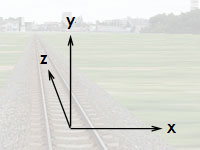
The position of structures in map are represented by the coordinate system with their origin at the center of the own track.
Scenery is constructed by describing many statements in a map file.
Main statements used in map file have syntax like the following.
MapComponent.Function(argument1, argument2, ...);
A semicolon ( ; ) is always required at the end of a statement.
The number of arguments vary by function. Some functions have no argument.
Only numeric statements represent about distance.
123.4;
The value is in meters.
A distances affect the described functions below.
Structures need to be loaded before the structures are placed.
Add a statement under the file header.
BveTs Map 2.02
Structure.Load('Structures\List.txt');
0;
The Structure.Load statement reads the structures according to the structure list file.
Set the relative path of the structure list file created above to the argument.
String arguments need to be enclosed in single quotation marks ( ' ).
In order to arrange structures continuously on a line, such as track, use the Repeater component.
Use the Begin function to start the arrangement.
Repeater[structureArrayName].Begin(trackName, translateX, translateY, translateZ, rotateX, rotateY, rotateZ, tiltType, length, interval, structureName);
Now place ballast.
BveTs Map 2.02
Structure.Load('Structures\List.txt');
0;
Repeater['Ballast'].Begin('', 0, 0, 0, 0, 0, 0, 3, 5, 5, 'Ballast0');
The structure array will start from distance 0 m.
The argument values set here represents as follows.
| structureArrayName: | Give the structure array a name "Ballast" |
| trackName: | Arrange on the own track |
| translateX, translateY, translateZ, rotateX, rotateY, rotateZ: Place on the origin of track | |
| tiltType: | Depend on both gradient and cant |
| length: | The length of the ballast structure used here is 5 m. |
| interval: | Placed at 5 m intervals. |
| structureName: | Arrange the "Ballast0" defined in the structure list |
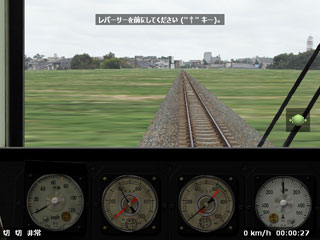
Now start this scenario.
You can see ballast on the screen.
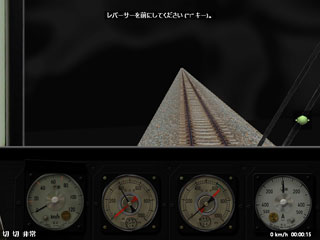
But the ballast has a regular pattern unnaturally.
Then, place five structures have different ballast texture in a cycle.
BveTs Map 2.02
Structure.Load('Structures\List.txt');
0;
Repeater['Ballast'].Begin(, 0, 0, 0, 0, 0, 0, 3, 5, 5, 'Ballast0', 'Ballast1', 'Ballast2', 'Ballast3', 'Ballast4');
Now start this scenario.
By the pattern cycle changes from 5 m to 25 m, the ballast will be more natural.
Place rails and ground structures in the similar fashion.
BveTs Map 2.02
Structure.Load('Structures\List.txt');
0;
Repeater['Ballast'].Begin(, 0, 0, 0, 0, 0, 0, 3, 5, 5, 'Ballast0', 'Ballast1', 'Ballast2', 'Ballast3', 'Ballast4');
Repeater['RailL'].Begin(, -0.5335, 0, 0, 0, 0, 0, 3, 5, 5, 'RailL0', 'RailL1', 'RailL2', 'RailL3', 'RailL4');
Repeater['RailR'].Begin(, 0.5335, 0, 0, 0, 0, 0, 3, 5, 5, 'RailR0', 'RailR1', 'RailR2', 'RailR3', 'RailR4');
Repeater['Grass'].Begin(, 0, -0.6, 0, 0, 0, 0, 1, 25, 25, 'Grass');
Each rail is placed with lateral translation to half gauge (0.5335 m) from the center of the track.
The ground is lowered to 0.6 m from the top of the rails. By setting "1" to the tiltType argment, the ground does not rotate with cant.

Background is also represented by a structure similar to a rail and a ground.
But use a special map component to place the background structure.
BveTs Map 2.02
Structure.Load('Structures\List.txt');
0;
Repeater['Ballast'].Begin(, 0, 0, 0, 0, 0, 0, 3, 5, 5, 'Ballast0', 'Ballast1', 'Ballast2', 'Ballast3', 'Ballast4');
Repeater['RailL'].Begin(, -0.5335, 0, 0, 0, 0, 0, 3, 5, 5, 'RailL0', 'RailL1', 'RailL2', 'RailL3', 'RailL4');
Repeater['RailR'].Begin(, 0.5335, 0, 0, 0, 0, 0, 3, 5, 5, 'RailR0', 'RailR1', 'RailR2', 'RailR3', 'RailR4');
Repeater['Grass'].Begin(, 0, -0.45, 0, 0, 0, 0, 1, 25, 25, 'Grass');
Background.Change('Bg');
The background structure used here is a cylindrical shape.
© 2015 mackoy